Journal Entries
How to create a manual journal entry.
- Log in to the ERP with a user account that has access to the accounting module.
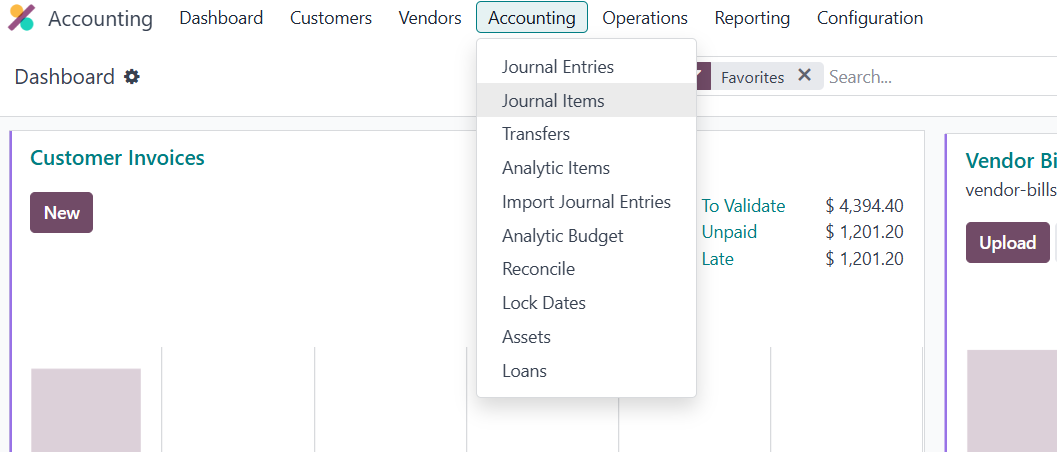
 2. Go to Accounting→ Accounting → Journal Entries.
3. Click new to a new journal entry. 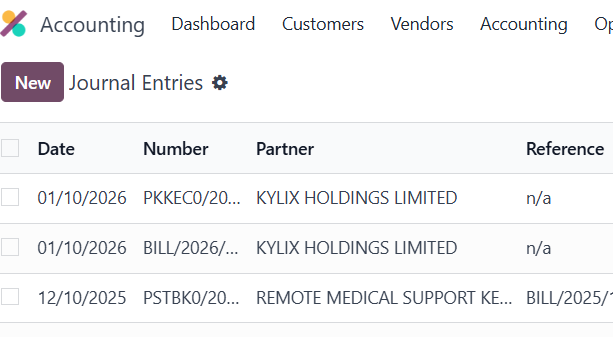
4.Fill in the Journal Entry Header Fields: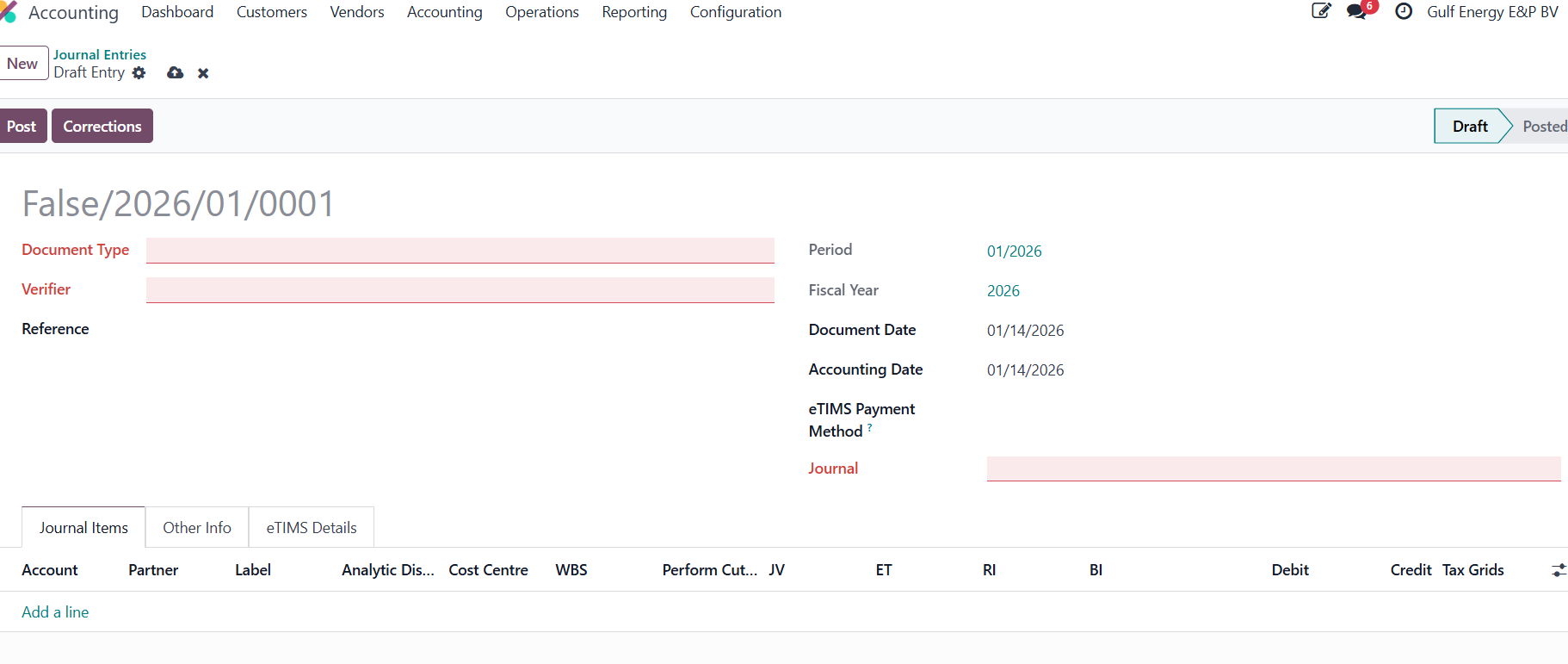
- Document Type: Indicates what type of document this entry is. Sometimes used for classification.
- Verifier: Optional field. You can add the person responsible for checking or approving this entry.
- Reference: A short note or document number for tracking (e.g., “Invoice 1234 Adjustment”). Helps in reporting and audits.
- Period: The accounting period this entry belongs to.
- Fiscal Year: The accounting year.
- Document Date: The actual date the transaction occurred, or the document was created.
- Accounting Date: The date this entry will be posted in the books. Usually same as Document Date but can differ if backdating is needed.
- eTIMS Payment Method: Specific to Kenya e-Tax (KRA). If the entry relates to eTIMS, you may select the payment method here.
- Journal: This determines where the entry will be posted.
5. Add Line Items (Debits and Credits): For each line, you must select:
Account: The account affected (e.g., Cash, Bank, Office Supplies, Revenue).
Label/Description: Optional explanation for that line item.
Debit / Credit: Enter the amount.
Debit: Increases an asset or expense, decreases a liability, equity, or revenue.
Credit: Increases a liability, equity, or revenue, decreases an asset or expense.
⚠️ Rule: Total debits must always equal total credits. Odoo won’t let you validate an unbalanced journal entry
6. Post and Validate: 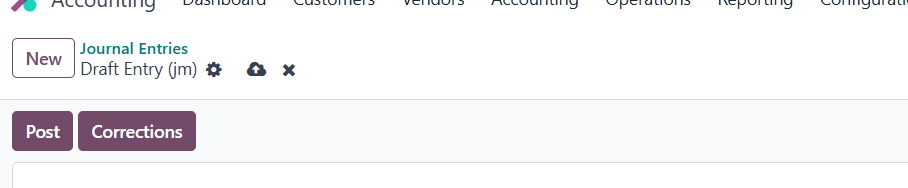
How to import journal items
1.Log in to the ERP with a user account that has access to the accounting module.
2: Go Accounting → Accounting → Journal Entries. 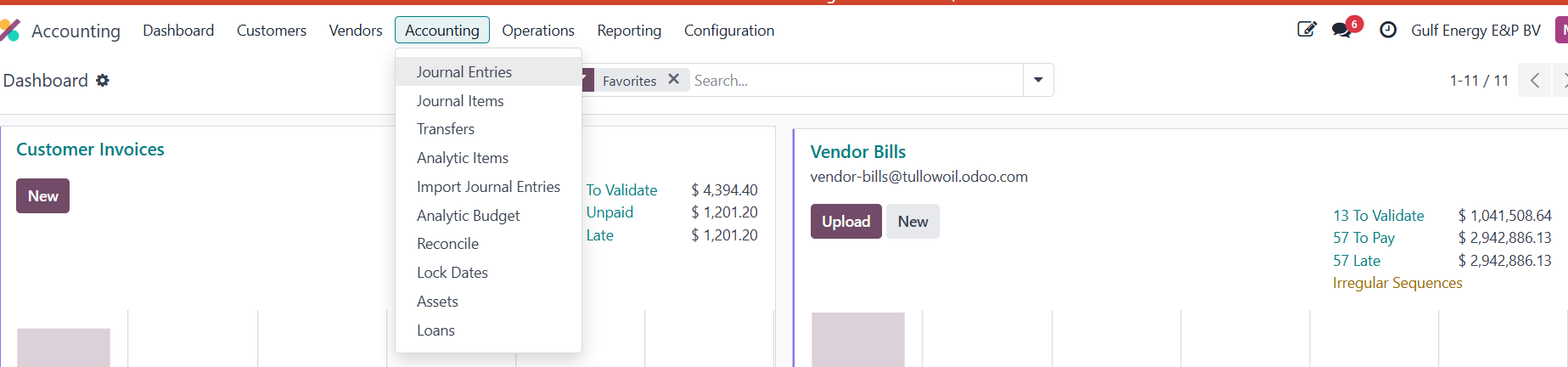
3.Switch to List View
4.Click the list / table icon (top-right). You must be in list view to see the Import option
5. Click “⚙️ Action” → Import Records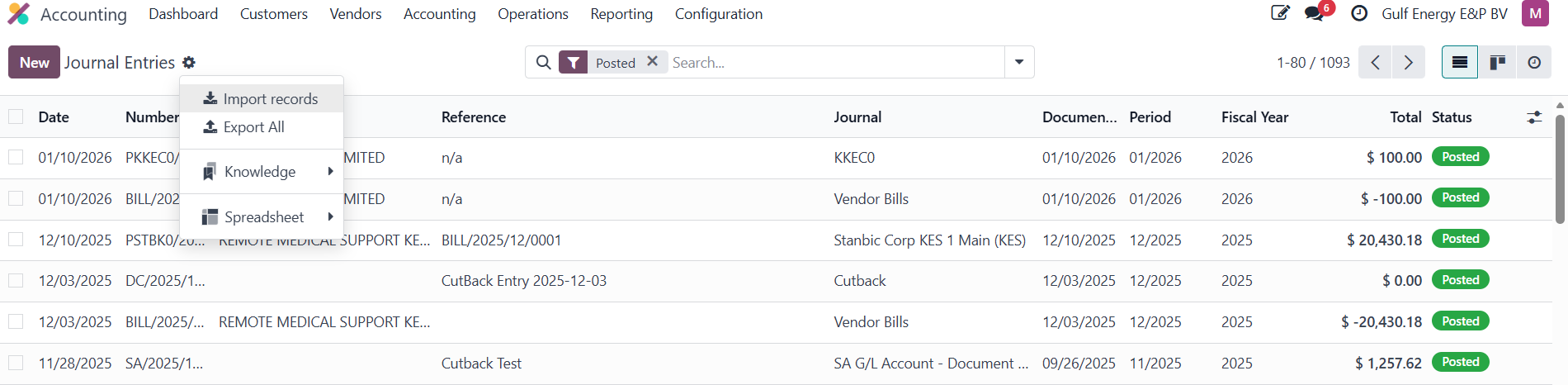
6.Click Import.
7.Odoo opens the import screen. 
8. Prepare Your Import File (Excel / CSV). Your file must have one line per journal item, not per journal entry.
9: Upload File in Odoo. Select your Excel or CSV
Click Upload File
10: Map Fields Correctly. Odoo auto-maps some fields. Check carefully: 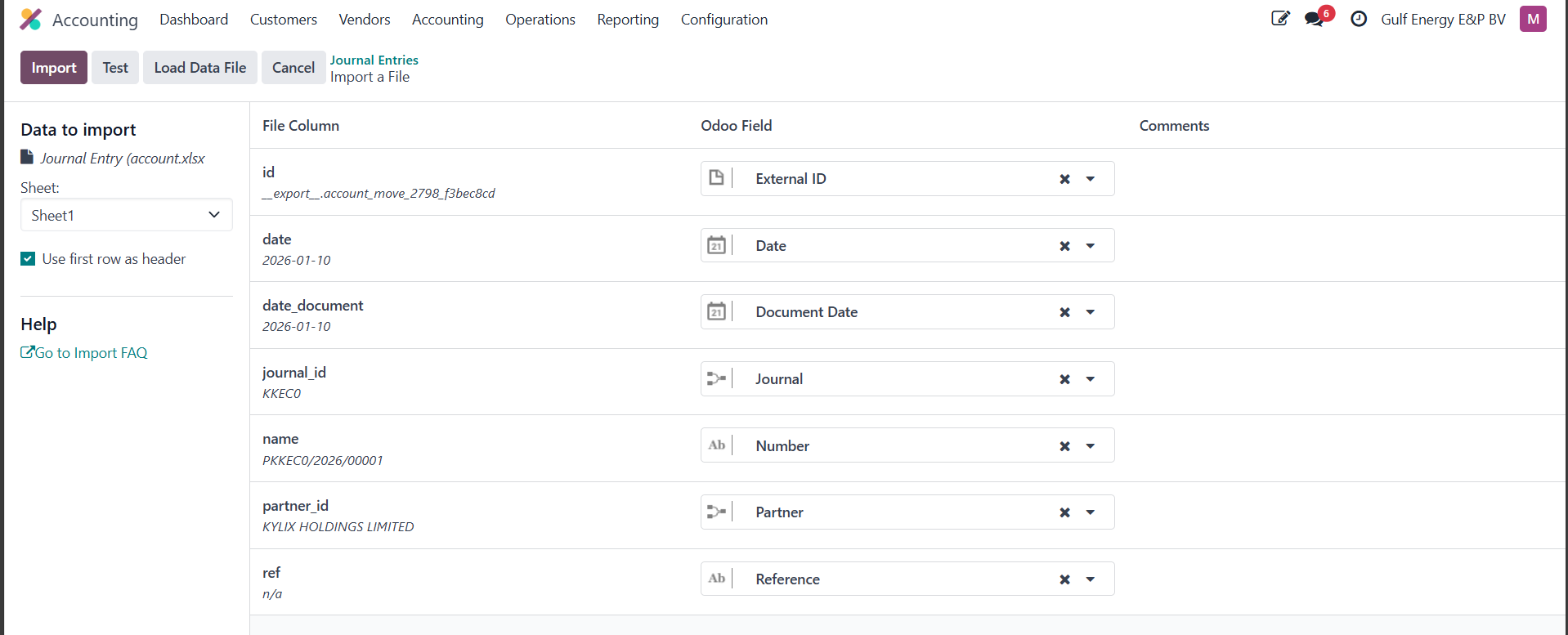
11. Click Test and it checks:
Accounts exist
Journals exist
Debits = Credits
Dates formats correct
12: Click Import and Journal entries are created in Draft.
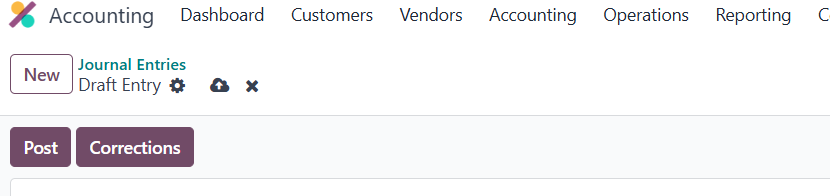
13.Go to Journal Draft Entries Open each entry and Click Post.
Document Sign-Off
| Role | Name | Date |
| Prepared By | Martha Ondigi | __________15/05/2026 |
| Reviewed By | Joseph Okech | __________15/05/2026 |
| Approved By | ___________________ | __________ |