Company Budgets
How to create Budgets
How to create CAPEX Budgets.
- Log in to the ERP with a user account which has access to the accounting module.
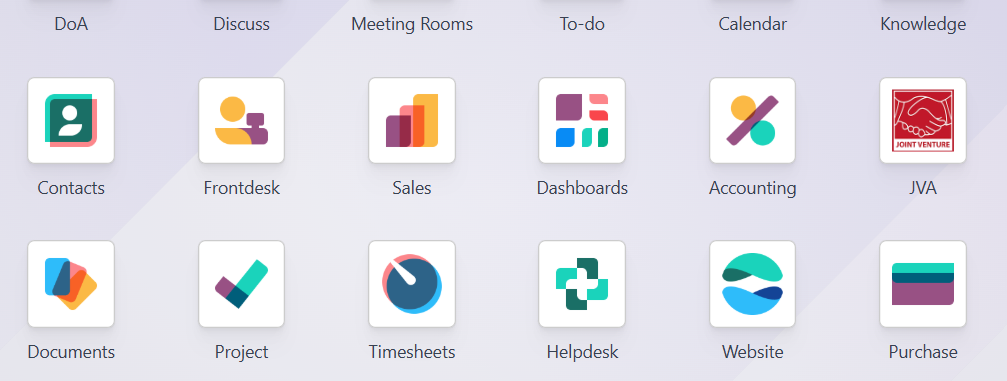
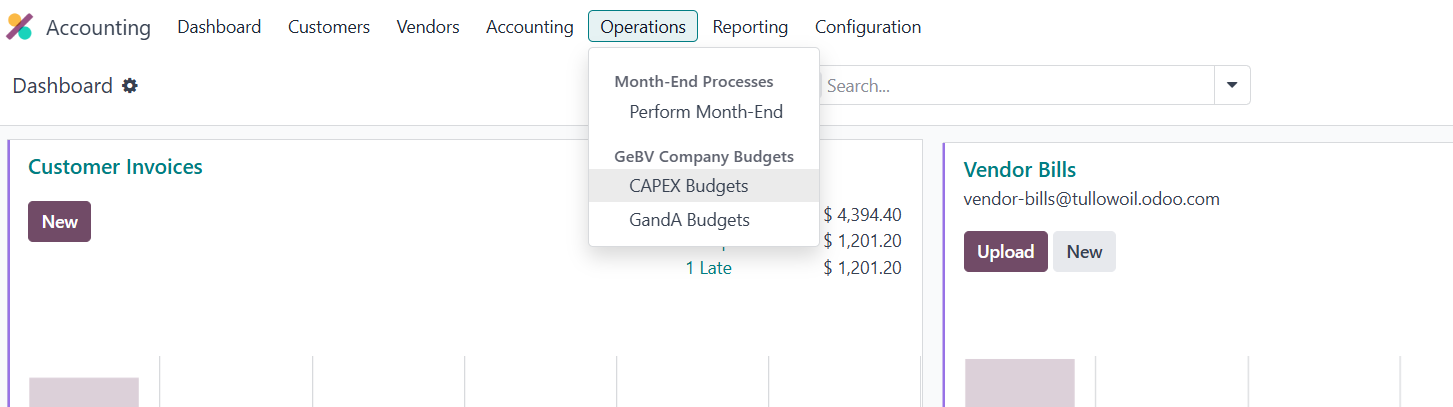
2. Navigate to operations and click on CAPEX Budgets and open.
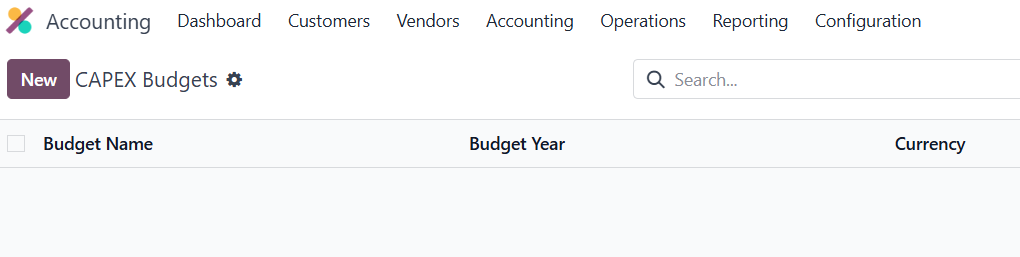
3. Click on New.
 4. This opens the create new budget with the required field being the Budget name and additional fields as
follows:
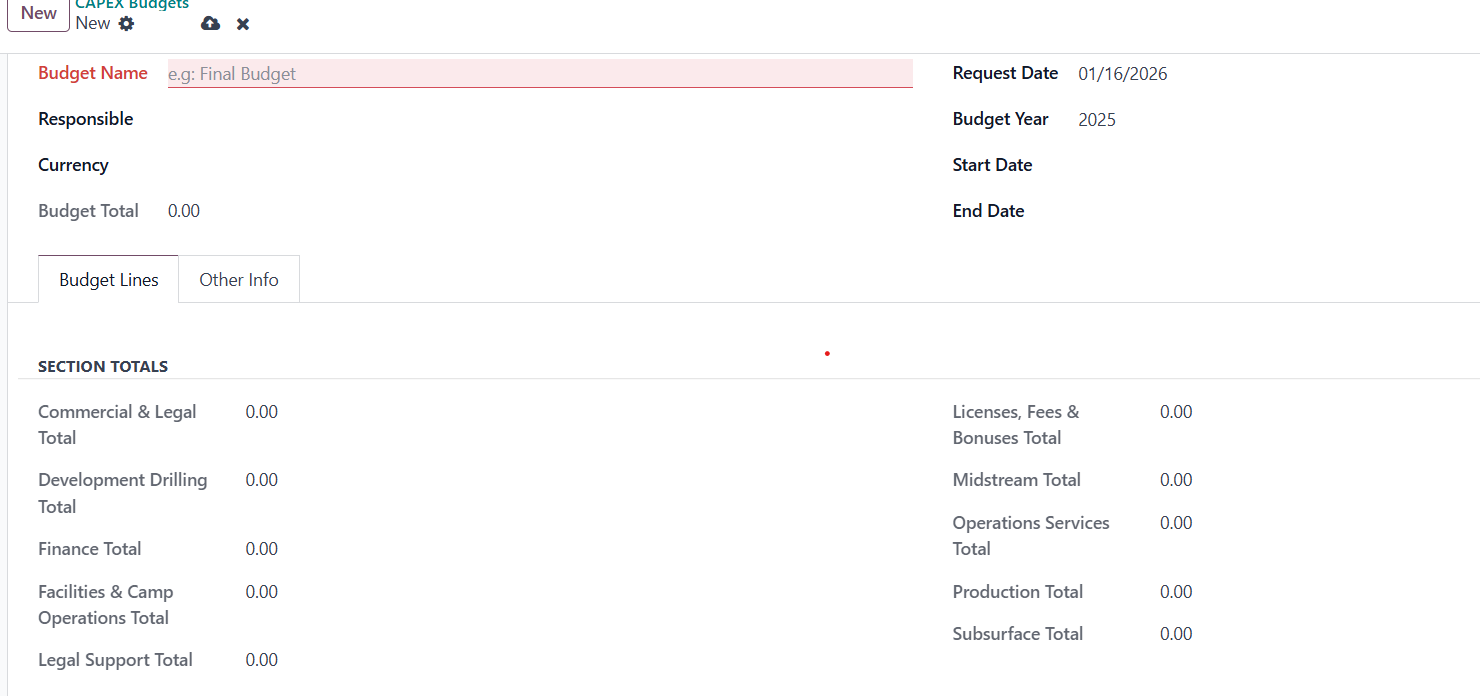
a). Budget Name: A unique name used to identify the budget. Should clearly describe what the budget is for.
Example:
“2025 IT Infrastructure CAPEX Budget”
b). Responsible: The person accountable for this budget. Usually the Budget Holder, Department Head, or Finance Manager, this person approves or oversees budget usage.
c). Currency: The currency in which the budget is planned.
Example's – Kenya Shillings, USD – US Dollars
All budget totals and comparisons use this currency.
d). Budget Total: Automatically calculated total of all budget lines and Updates as you add or modify budget lines. Read-only field (you cannot edit it manually).
e). Request Date: The date the budget request was created it is Used for tracking and audit purposes but also Does not affect accounting entries.
f). Budget Year: The financial year the budget applies to it Helps with yearly budget reporting and comparisons.
Example: 2025
g). Start Date: The date from which the budget becomes active. Odoo only checks expenses from this date onward.
h). End Date: The date when the budget expires and the Expenses after this date will not consume this budget.
5. Under Budget Lines click add line. 
6. On clicking add line this opens a window for add budget line. Click New.
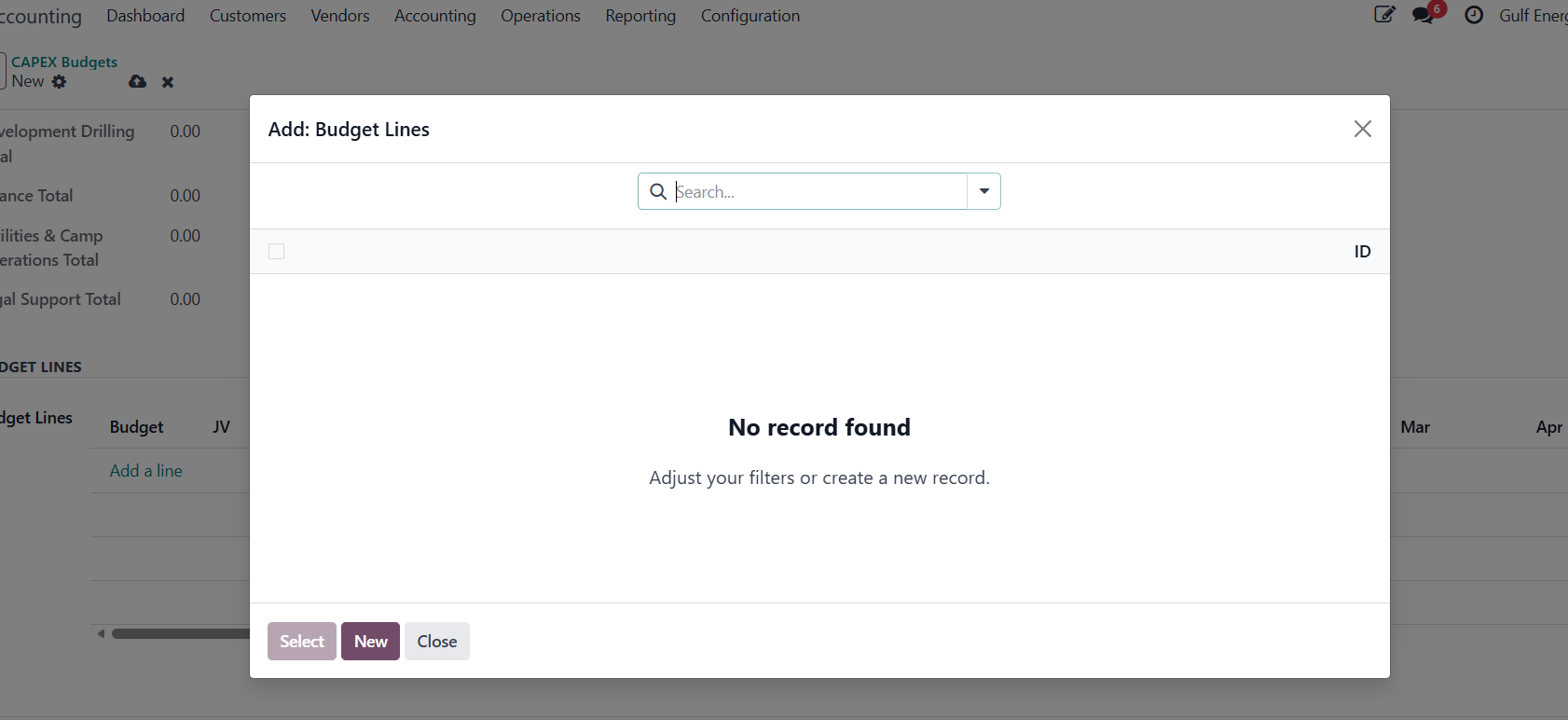
7.This opens additional fields as follows:
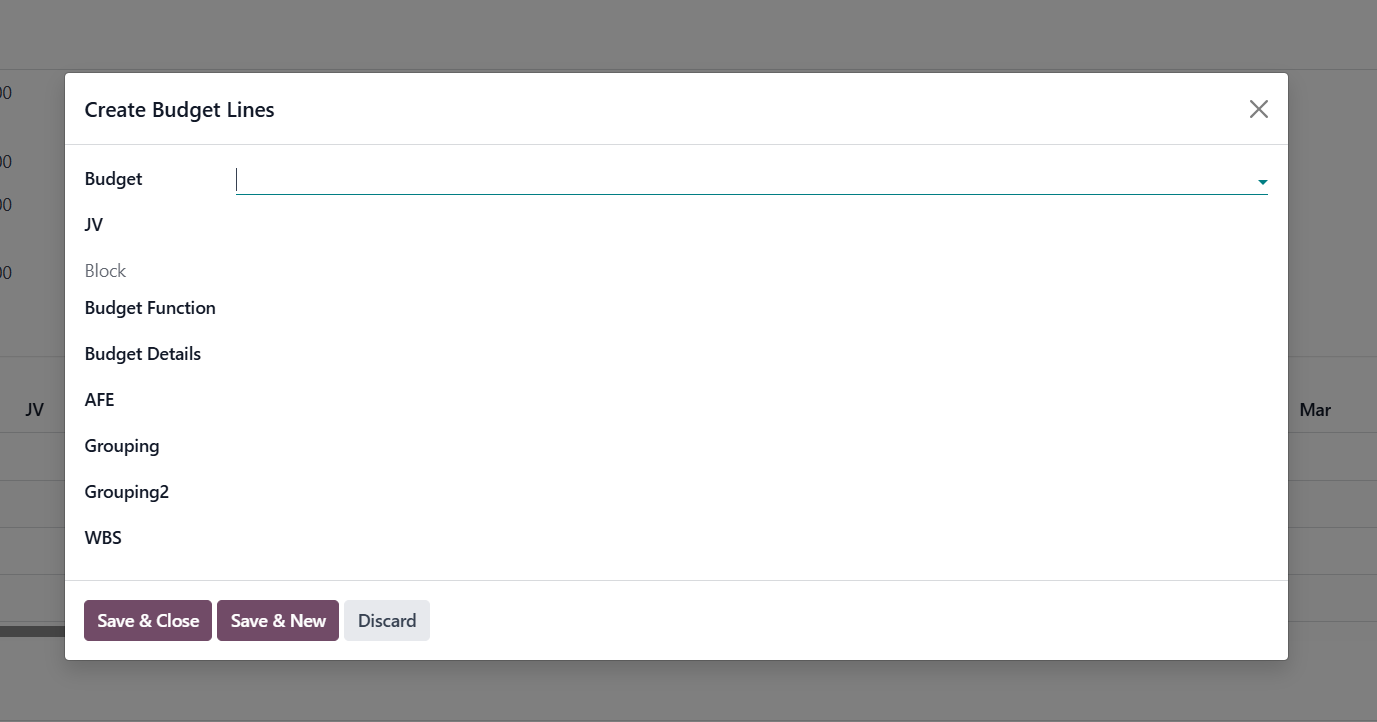
a). Budget: Selects the parent budget to which this line belongs and automatically links this budget line to the correct CAPEX budget.
Example: 2025 CAPEX Budget
b). JV (Joint Venture): Select the corresponding JV.
c). Budget Function: Defines the functional purpose of the budget line. Used for management reporting and analysis.
d). Budget Details: Provides more specific classification of the budget function and adds detail to explain what exactly the money is for.
e). AFE: A reference number or code that authorizes this expenditure. Used to control and approve CAPEX spending. Ensures all spending is tied to an approved AFE.
f). Grouping: group to the correct group. Helps summarize budget lines into higher-level sections.
g). Grouping2; Group it to its corresponding group. Allows more detailed breakdown within Grouping.
h). WBS: Pick the corresponding WBS.
8.Now at the amount too the corresponding: Full year calculates itself as you add the amounts in months
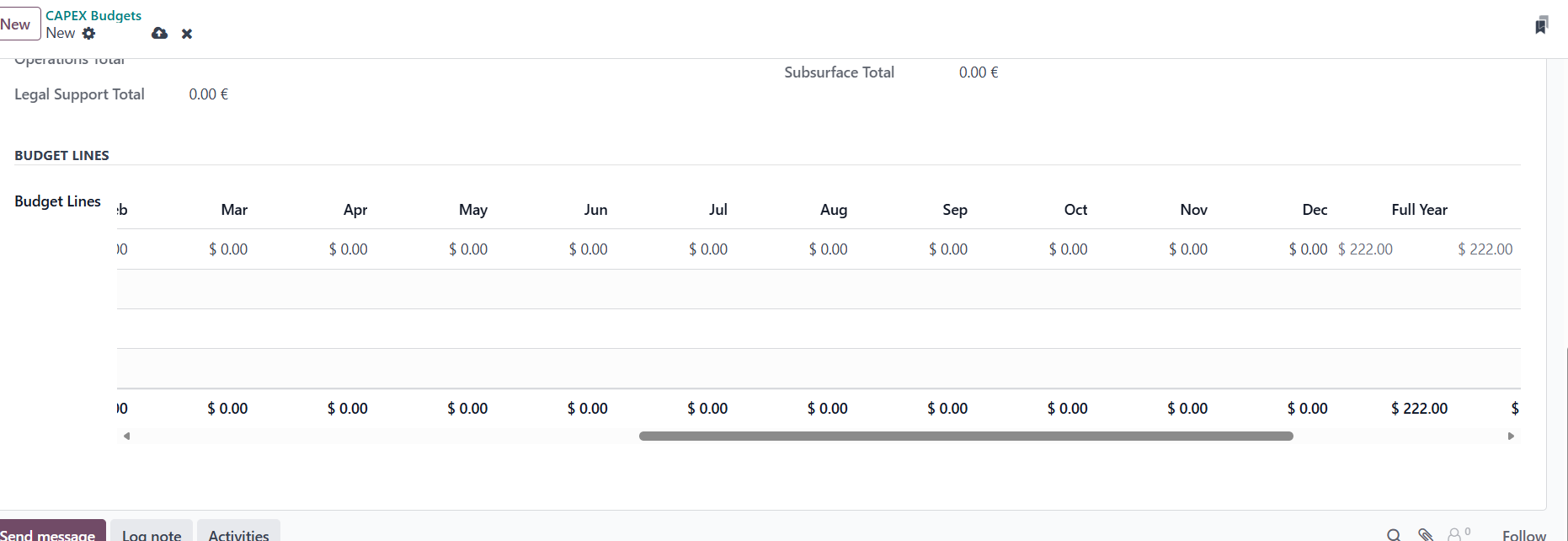
9.The click save and submit for approval.
How to create G and A Budgets.
- Log in to the ERP with a user account which has access to the accounting module.
2. Navigate to operations and click on G and A Budgets and open. 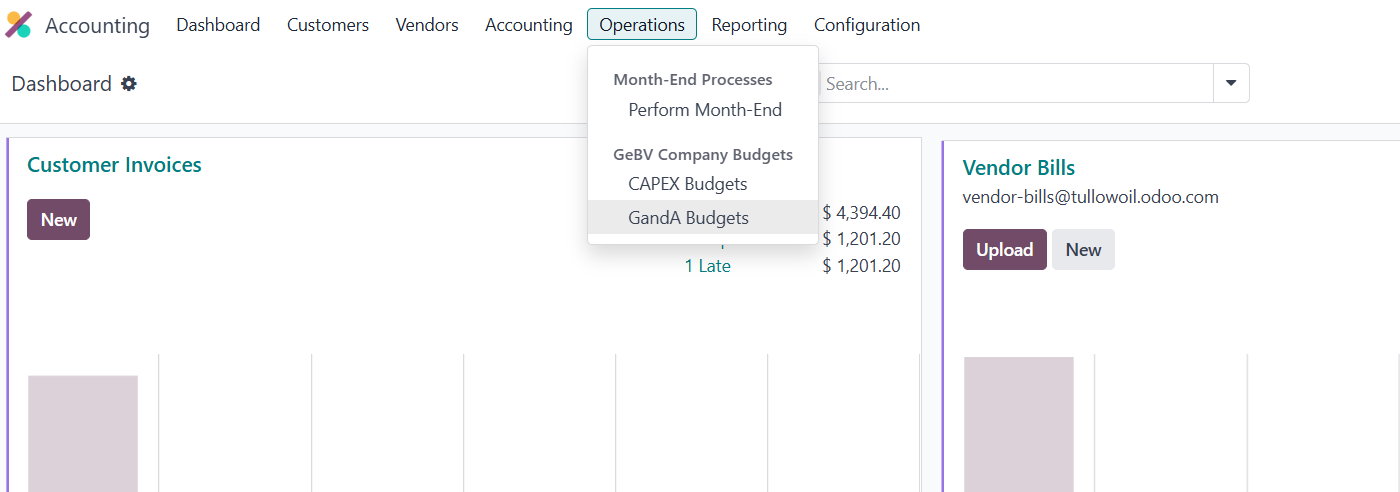
3. Click on New. 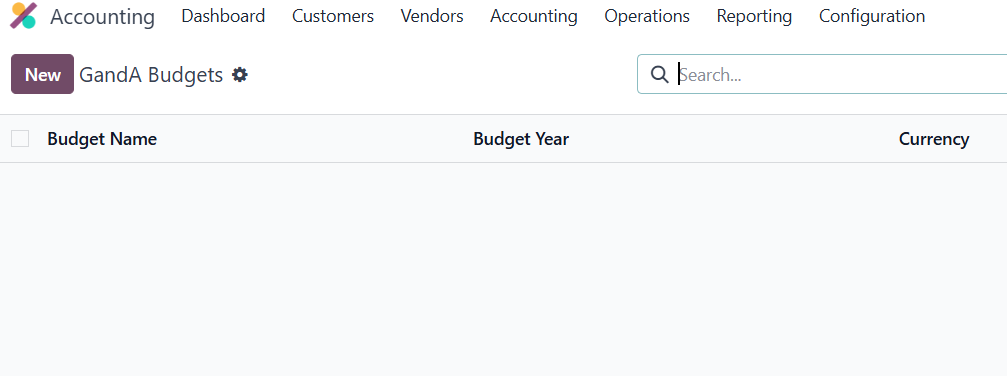 4. This opens the create new budget with the required field being the Budget name and additional fields as follows.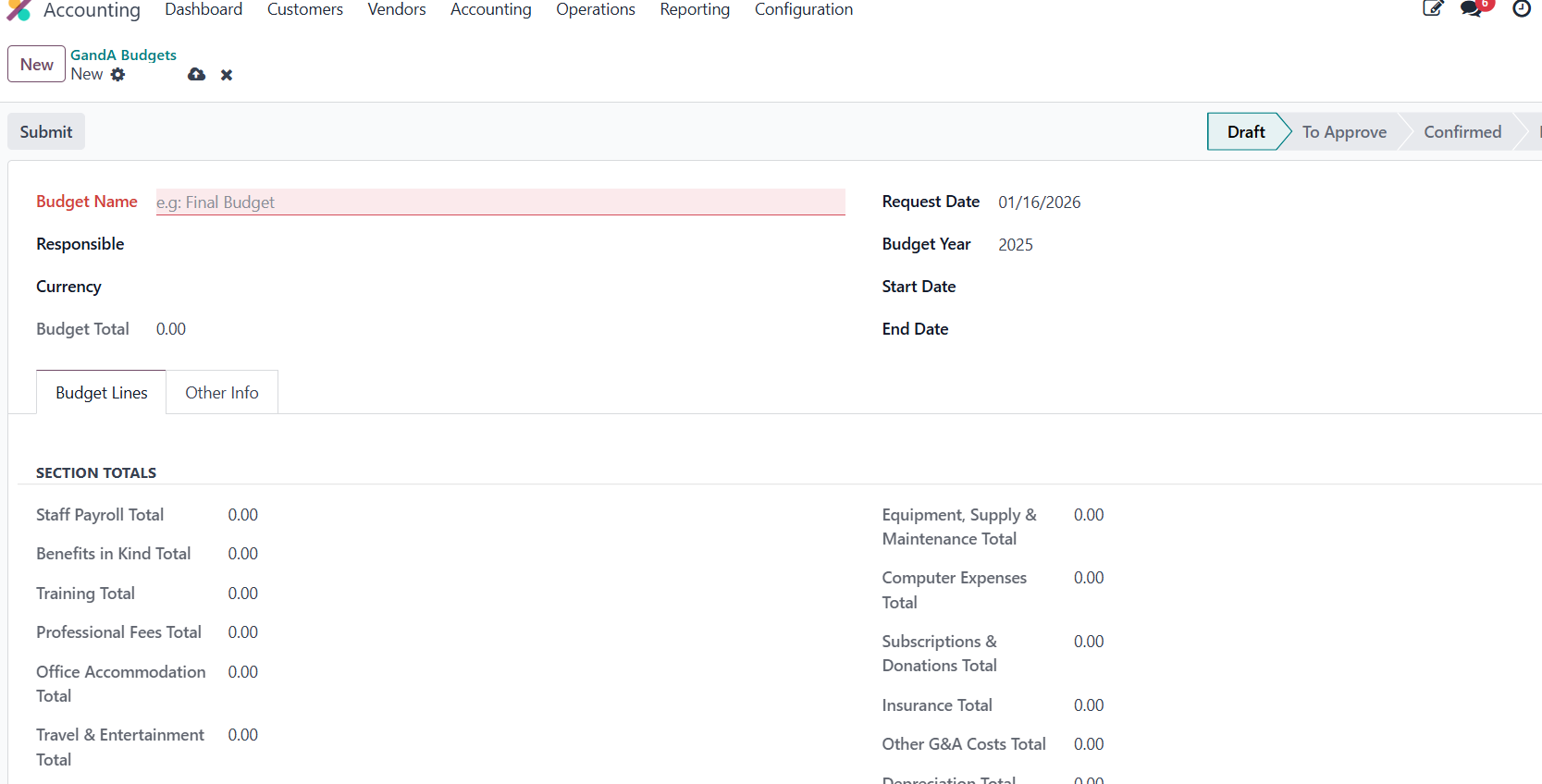
a). Budget Name: write the name of the Budget.
Example:
2025 HR G&A Budget
b). Responsible: write the name person accountable for this budget.
c). Currency: Write the Currency used for the budget.
d). Budget Total: Automatically calculated total of all budget lines.
e). Request Date: Date when the budget was created or requested.
f). Budget Year: Financial year the budget applies to.
g). Start Date: Date from which the budget becomes active.
h). End Date: Date when the budget expires.
5. On Budget Lines click add line.
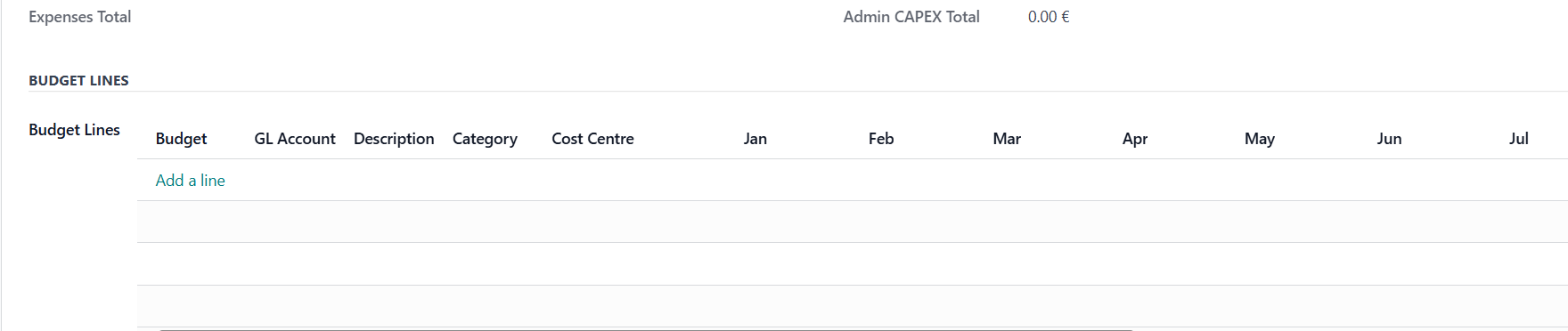
6. This opens a window with the required field as follows and click New.
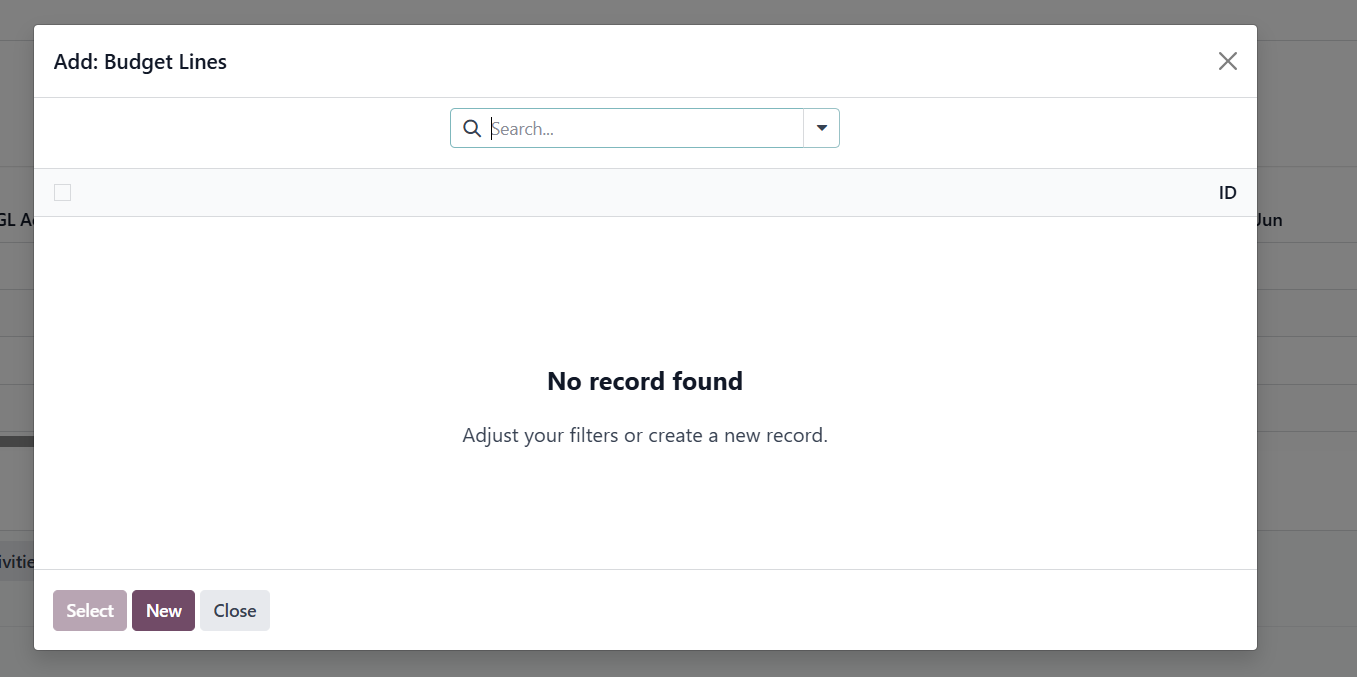
7. This opens a window with the required field as follows.
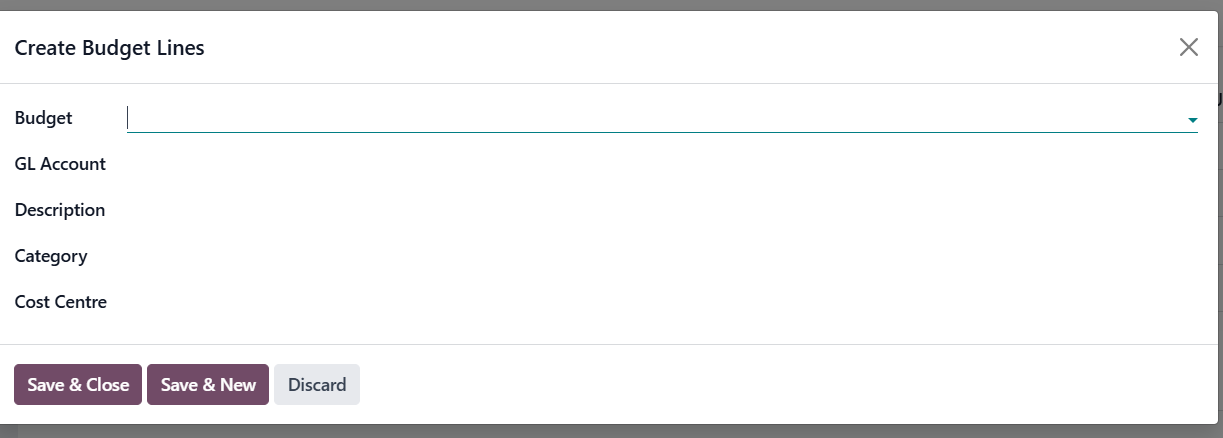
a). write the Parent name of the Budget.
b). GL Account: Select or write the GL Account.
c). Provide a clear note on what this line is all about or for.
d). Category: Use these lines for internal reporting.
e). Cost Center: Select the cost center recommended.
8.Save &Close.
9. Submit for approval.
Document Sign-Off
| Role | Name | Date |
| Prepared By | Martha Ondigi | 15/05/2026 |
| Reviewed By | Joseph Okech | 15/05/2026 |
| Approved By | Beatrice Thuku | 12/08/2026 |
| Authorized By |