Master Data Management
Revision
Version | Date | Author | Description |
1.1 | 23/09/2026 | Mark Musili | Updated Inventory Master Data Procedures |
Accounting.
Currency Exchange Rate Request Creation
- Log in to the ERP with access to the MDM (Master Data Management) module.

- Navigate to the MDM module.
- Click on Operations.

- Select change/modifications Requests.

5: Create the Request
- Click the Create new button.
Fill in the following required fields:
- Module: Enter the name of the module where the change is being made (e.g., MDM or Accounting).
- Master Data: Specify the type of data you are modifying (e.g., Currency Exchange Rate).
- Record ID: Enter the unique identifier for the specific record being updated.
- Field to Change: Identify the exact field that requires a modification (e.g., Exchange Rate).
- Value to Change: Provide the new value that should be applied to that field.
Step 3: Submit for Approval
- Review all entered information for accuracy.
- Click Save.
- Click Submit to send the request into the approval workflow.
How to create a new Bank.
- Log in to the ERPwith access to MDM module.
2. Click on Operations Bank Requests or Master Data Requests.
3. Create the Request by clicking on Create new button.
Fill in the Required Fields:

- Code: Enter a unique identification number for this account (the example shows a 6-digit format like 101000).
- Bank Account Short Description: Provide a brief name (e.g., "KCB Ops - Nairobi").
- Bank Account Long Description: Enter the full formal name of the account for reporting purposes.
- Bank Account Number: Enter the full IBAN or standard account number.
- Account Currency: Select the currency (e.g., KES, USD, EUR).
- Bank & Branch: Select or type the specific bank and branch location (e.g., "KCB - Gateway Branch").
- Account Group: Assign it to the correct internal group (e.g., "Current Accounts" or "Project Funds").
- Requires Clearing Account?: Check this box if your finance team uses an intermediate account for reconciliation before final posting.
3. Main GL Account Details
- GL Account Code: Enter the specific General Ledger code from your Chart of Accounts that this bank account should link to.
- Requires Revaluation: Check this if the account is in a foreign currency and needs to be adjusted periodically for exchange rate changes.
4. Process Control (Required for Submission)
- Request By: Enter your name or employee ID.
- Approval By: Enter the name of the supervisor or finance manager who needs to authorize this new bank setup.
5. Submit for review and approval.

How to create WBS and edit them in the MDM.
- Log in to an ERP with access to MDM module.

2. Navigate to the operations ->change/modification Requests.
3. Start a New Request: Click the Create new button to open a fresh request form.

Fill in the Request Details:

- Module: Enter "Project" or "Accounting".
- Master Data: Specify "WBS" or "WBS Element".
- Record ID: If creating a new one, you can enter "NEW"; if editing, enter the existing WBS code.
- Field to Change: Identify the specific attribute (e.g., "New WBS Level" or "WBS Parent").
- Value to Change: Provide the details of the structure, such as the Name and Parent WBS it belongs to.
4. Submit for Review: Click Save.
5. Then click the purple Submit For Review button at the top left of the form to trigger the approval process.

How to create GL Accounts.
- Log in to the ERP system with access to MDM Module.

- Navigate to MDM->Operations-GL Accounts

- Click New

- Start a New Request by filing in the following fields.

The Code field contains the unique account number assigned to the GL account. This code is used throughout the system for posting and reporting purposes.
The Short Description field stores a concise account name that allows users to quickly identify the account.
The Long Description field provides a more detailed description of the account and its intended purpose.
The Type field defines the nature of the account and determines how it behaves within the accounting structure.
The Account Group field assigns the account to a predefined category within the chart of accounts, supporting financial reporting and account management.
The Is P&L Account? checkbox indicates whether the account belongs to the Profit and Loss statement. This option is typically selected for revenue and expense accounts.
The Is BS Account? checkbox indicates whether the account belongs to the Balance Sheet. This option is typically selected for asset, liability, and equity accounts.
The Requires Revaluation? checkbox specifies whether the account should be included in currency revaluation processes. This is generally applicable to foreign currency-denominated accounts.
The Request By field records the individual who initiated the account creation request.
The Request Date field captures the date on which the request was submitted.
The Approval By field identifies the person responsible for reviewing and approving the account request.
The Approve Date field records the date on which the account request was approved.
The Confirm Date field records the date on which the account setup was finalized and confirmed in the system.
How to create Cost Centers.
Log in to an ERP system with access to MDM module.
Navigate to MDM -Operations-Cost Object (WBS or Cost Center

Click new

Fill in the fields

Under cost object ensure you choose the Cost object.
How to Inactivate bank account.
1.Log in to an REP with the MDM module access.

2.Navigate to MDM -Operations-Bank Account-Make Inactive.

3.Create new by clicking new.

4.Fill in the Required details and submit until done.

| Bank Account | Select the bank account that needs to be made inactive. |
| Request By | The name of the person requesting the bank account to be inactivated. |
| Request Date | The date the request is created. |
| Approval By | The approver's name. |
| Approve Date | The date the approver approves the request. |
| Confirm Date | The date the bank account is officially confirmed as inactive. |
Inventory
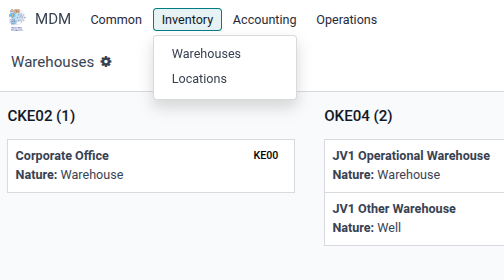
- Log in to the MDM module and access the Inventory view to view the Inventory master data. This is where you shall view the Warehouses and Locations.
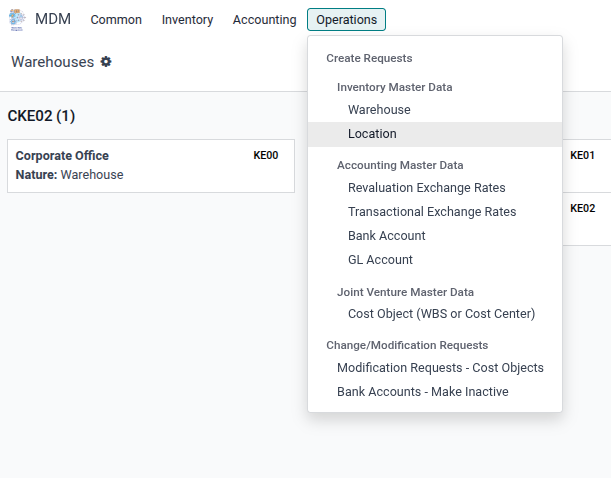
2. To create new master data for inventory, navigate to the Operations menu > Create Requests > Inventory Master Data
How to create a new Warehouse
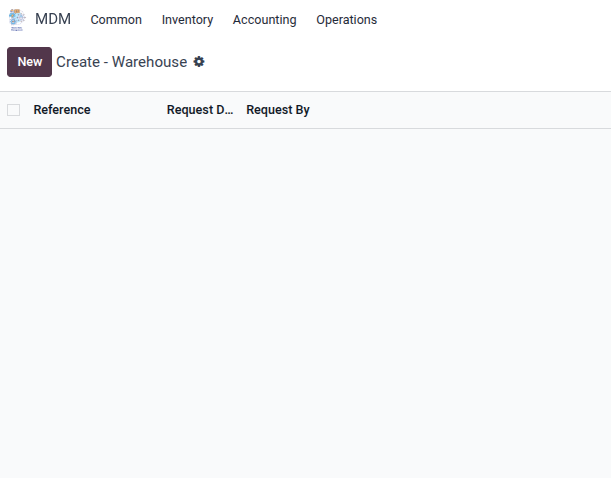
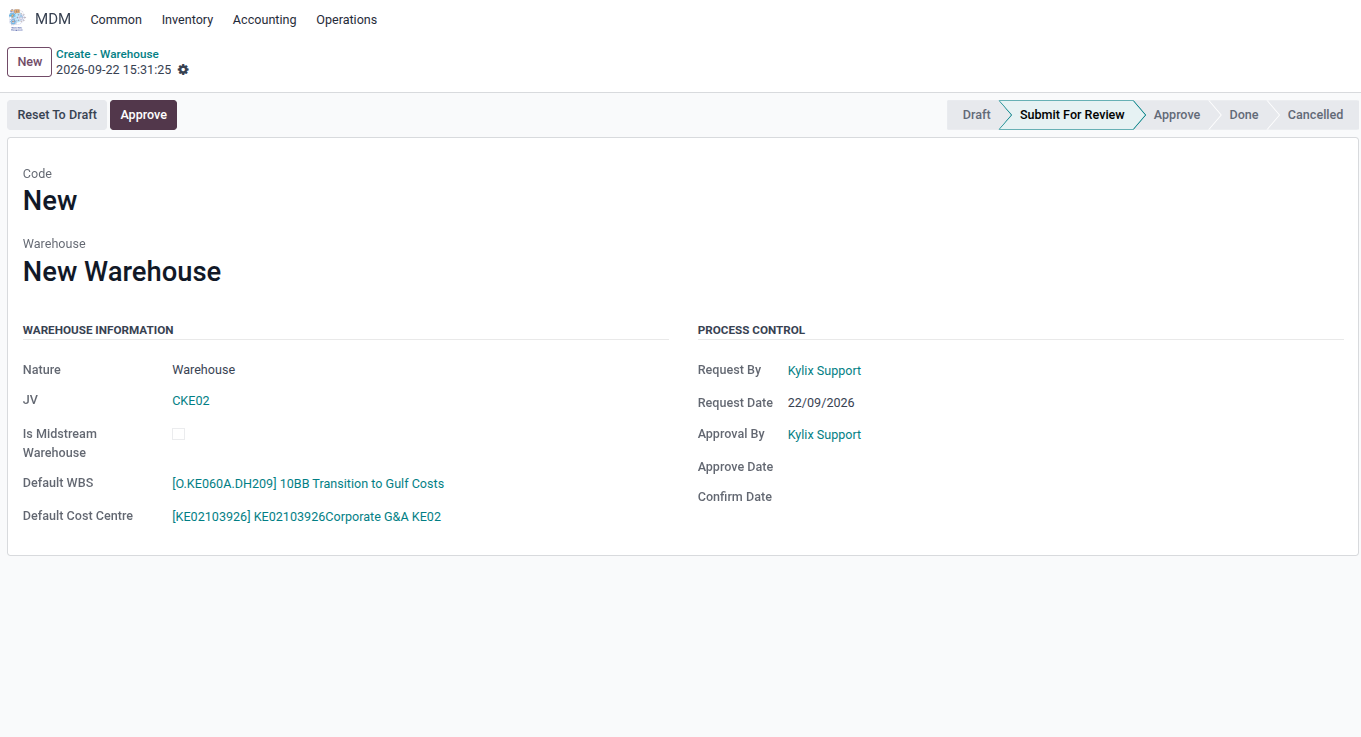
1.To create a new warehouse, access the view by clicking on the Warehouse under Inventory Master Data and click new.
- Code: Short name used to identify the warehouse (up to 5 characters e.g. WHS). This must be unique in the system. Example: KE03
- Warehouse: Full name of the warehouse.
- Nature: Type of unit. Select Warehouse or Well.
- JV: Linked Joint Venture (if any).
- Default WBS: Default WBS element allocated to warehouse transactions.
- Default Cost Centre: Default cost centre allocated to warehouse transactions.
- Is Midstream Warehouse: Tick only if this is a midstream storage warehouse. When ticked, also set:
Is Source Warehouse for Midstream
Is Destination Warehouse for Midstream
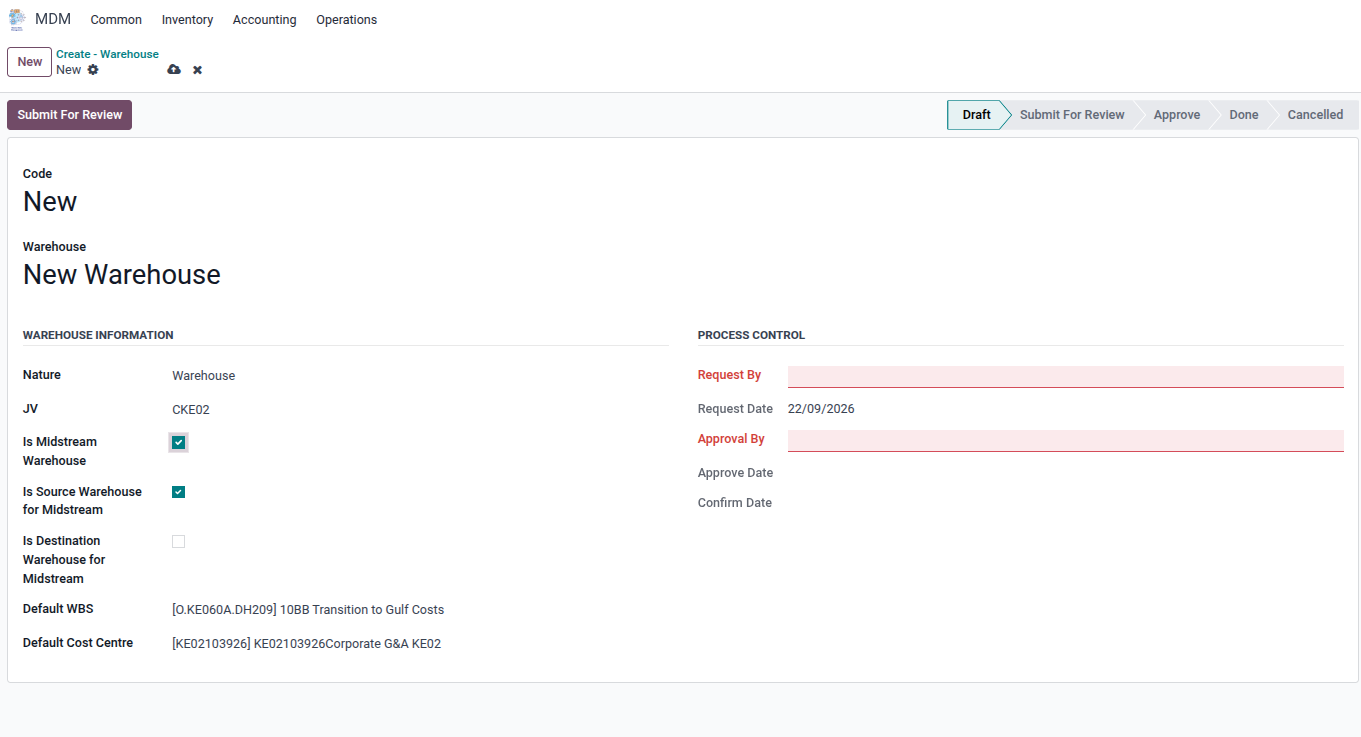
3. Set up Process Control fields
- Request By: The person requesting (defaults to the user creating the request).
- Approve By: The user who will approve the request.
4. Click Submit For Review.
5. The Approver opens the request and clicks Approve and Confrim.
How to create a location
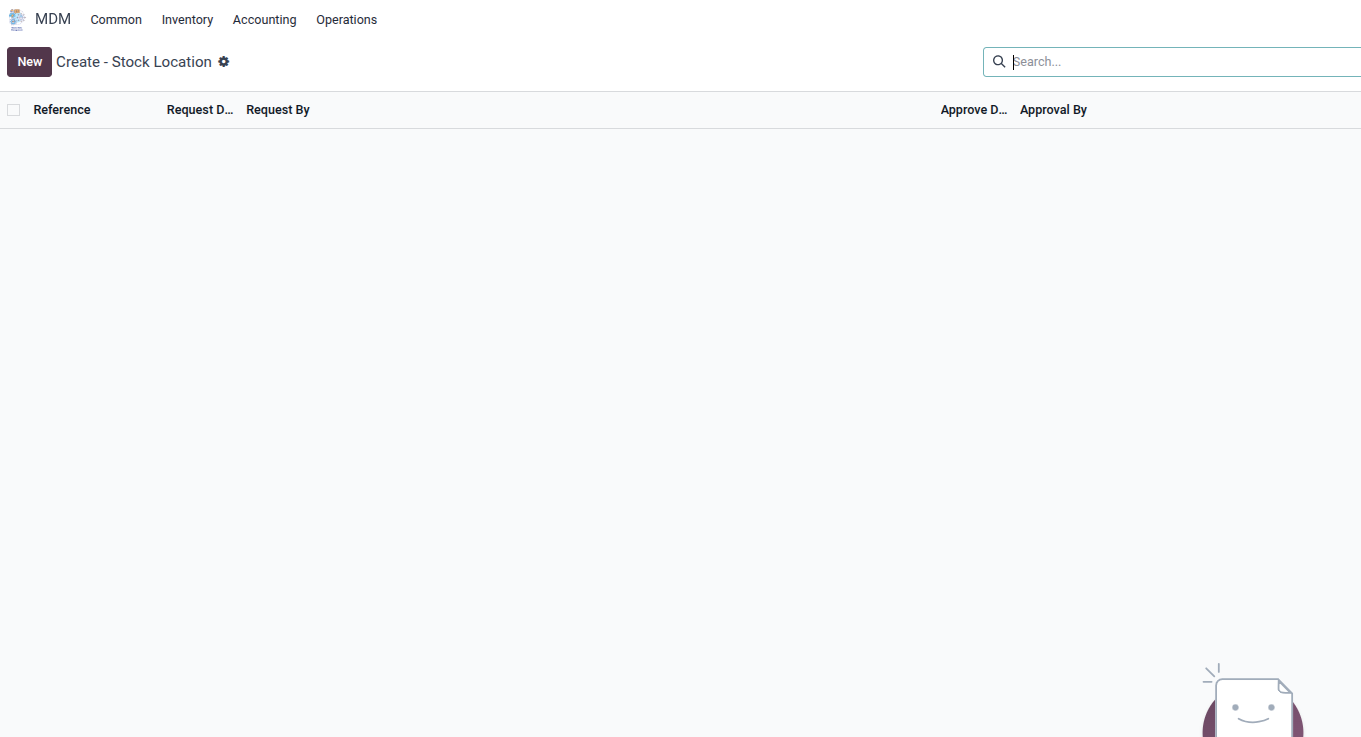
1.To create a new location, access the view by clicking on the Locations under Inventory Master Data and click new.
- Location Name: Name of the location (e.g. 2000, Blocked, 31C).
- Warehouse: The parent warehouse this location will belong to.
- Description of Storage Location: Free text describing the location.
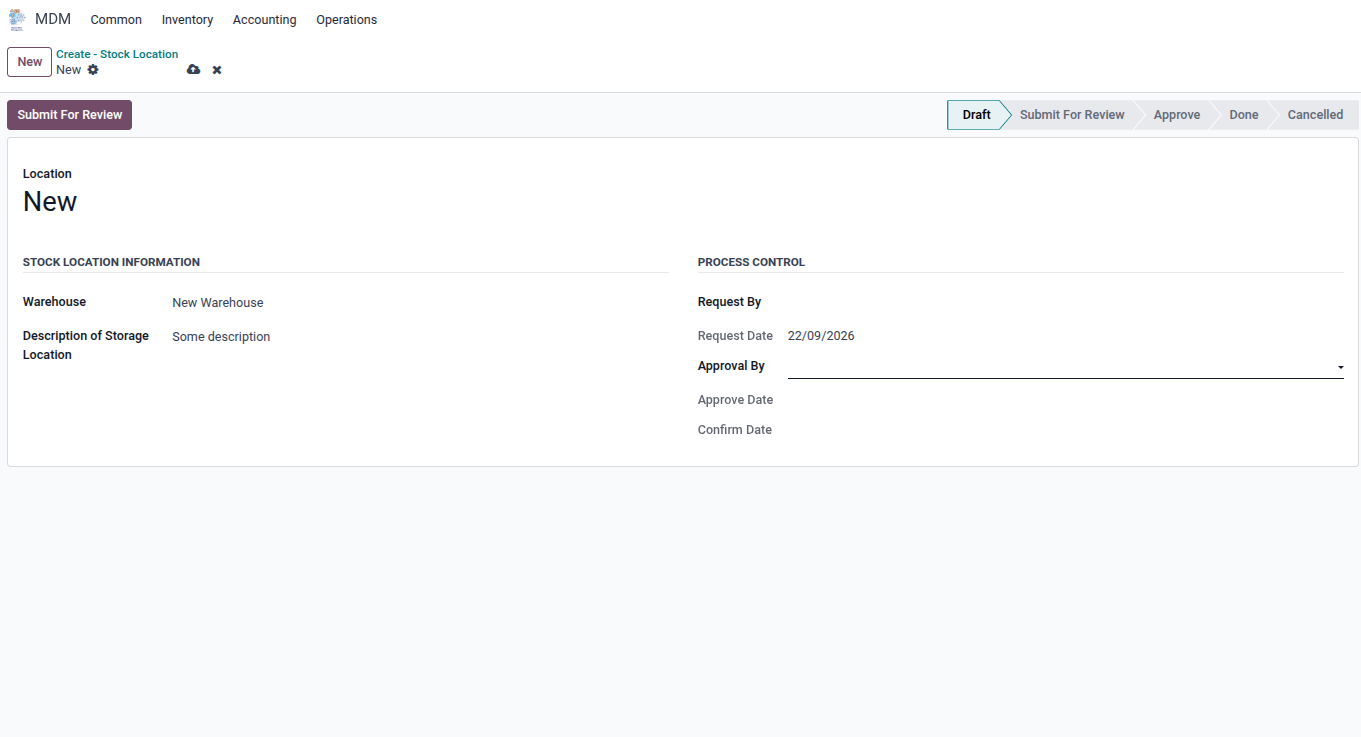
- Request By: The person requesting.
- Approve By: The user who will approve the request
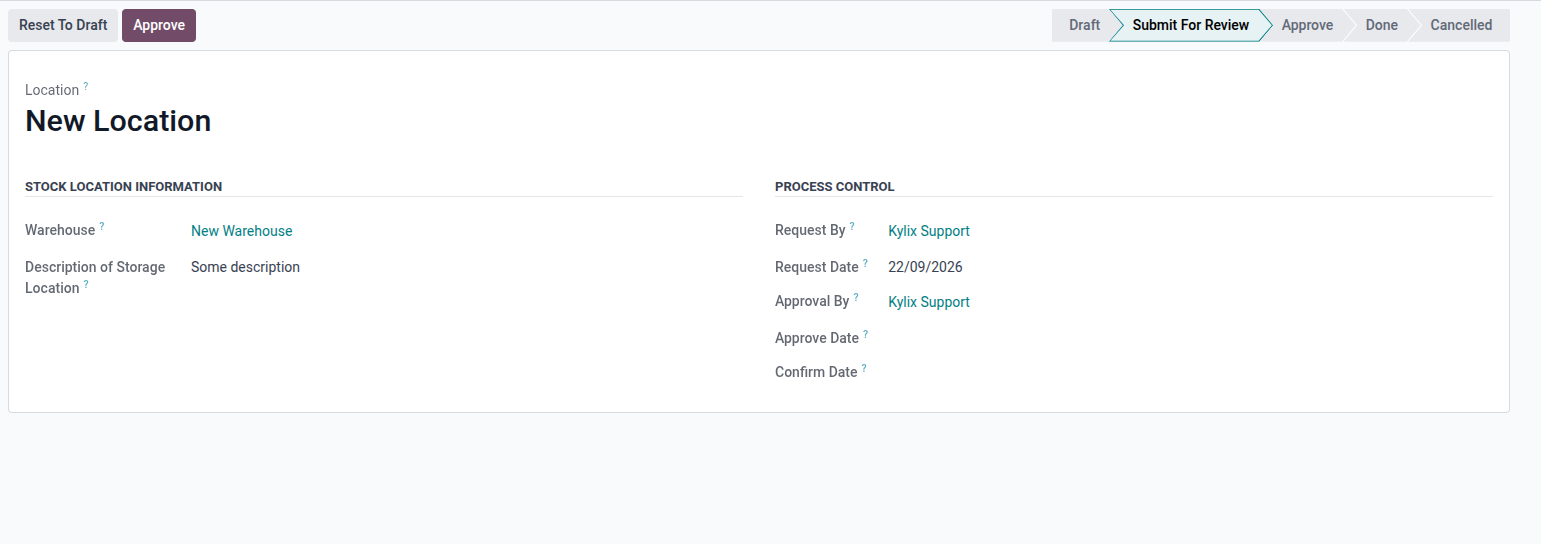
4. Click Submit For Review
5. The Approver opens the request and clicks Approve.
Document Sign-off
| Role | Name | Date |
| Prepared By | Martha Ondigi | 15/05/2026 |
| Reviewed By | Joseph Okech | 15/05/2026 |
| Client Approved By | Beatrice Thuku | 10/08/2026 |
| Authorized By | ___________________ | __________ |