Admin Assets
How to categorize types of assets.
1.Log in to the system with access to Accounting module.
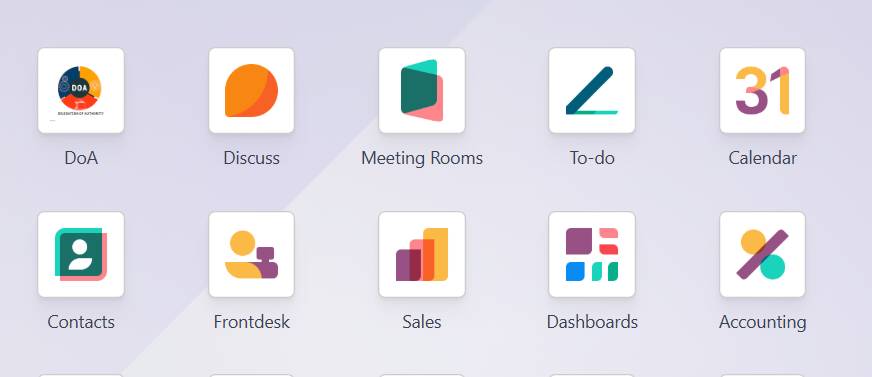
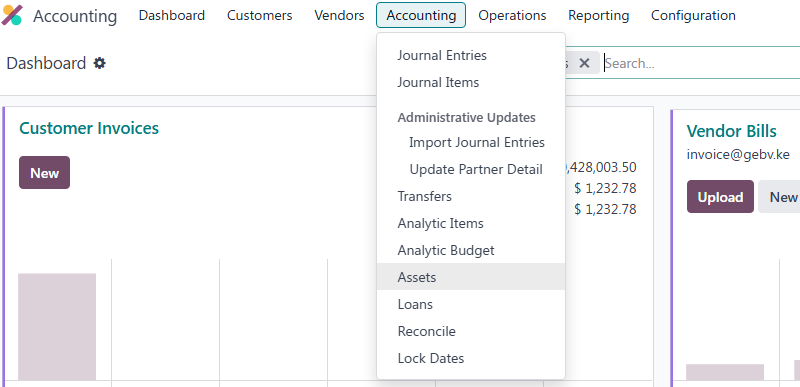
2. Navigate to accounting Assets and click open.
3. On the search bar. filter the the list by Asset type.
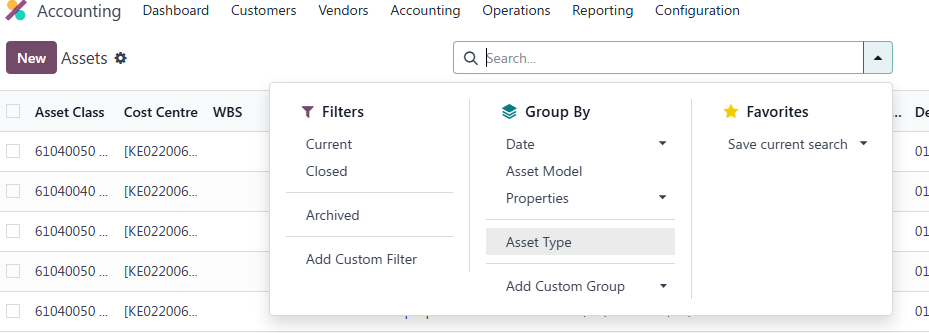
4.Once you apply that filter you shall have a view of the assets grouped by the Asset Types
Create an Asset Model
1.Go to: Accounting → Configuration → Asset Models
2. Click New.
3. Fill in:
| Field | Meaning |
| Asset Model Name | Name/category of the asset e.g. Office Computers |
| Fixed Asset Account | Balance Sheet account where asset value is recorded |
| Depreciation Account | Accumulated depreciation account |
| Expense Account | Account where depreciation expense is posted |
| Straight Line Method | Equal depreciation every period |
| Declining Method | Higher depreciation at the beginning, lower later |
| Number of Depreciations | Total number of depreciation entries |
| Monthly Frequency | Depreciation posted every month |
| Yearly Frequency | Depreciation posted once per year |
Click Save.
Purchase/Book the Asset
Option A : Through Vendor Bill (Recommended)
1.Go to: Accounting → Vendors → Bills → New
Select Vendor
Add product/asset
Choose the Asset Account
2. Under the bill line:
Select the Asset Model
3. Confirm/Post the bill.
Odoo automatically creates the asset.
Option B: Create Asset Manually
1.Log in to the system with access to Accounting module.
2. Navigate to accounting --Assets and click open.
3.Click New
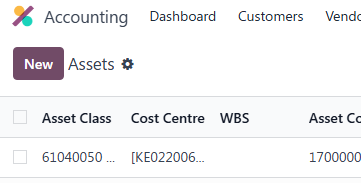
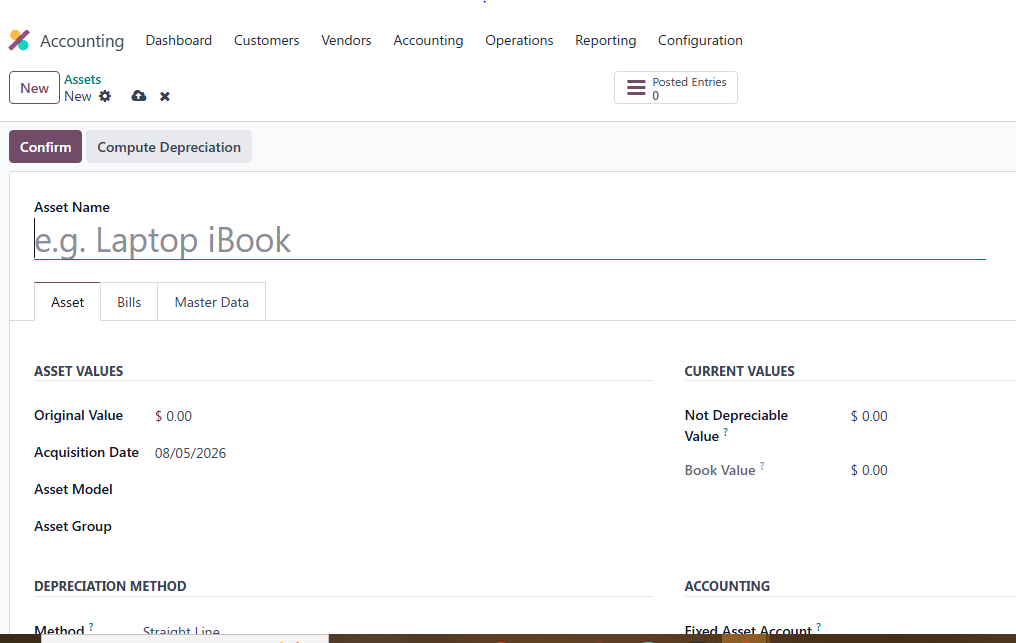
4. Fill in the required information for the asset to be created.
Explanation of Asset Form Fields in Odoo
| Field | Meaning |
| Asset Name | Name of the asset e.g. Laptop iBook |
| Asset | Asset category/type |
| Bills | Vendor bill linked to the asset |
| Original Value | Purchase cost of the asset |
| Acquisition Date | Date the asset was bought |
| Asset Model | Predefined depreciation setup/template |
| Asset Group | Group/category of similar assets |
| Not Depreciable Value | Value that should not depreciate (salvage/residual value) |
| Book Value | Current asset value after depreciation |
| Depreciation Method | How depreciation is calculated |
| Straight Line | Equal depreciation every period |
| Duration | Useful life of the asset |
| Computation – Constant Periods | Equal depreciation amounts for all periods |
| Prorata Date | Date depreciation starts |
| Fixed Asset Account | Account holding asset value |
| Depreciation Account | Accumulated depreciation account |
| Expense Account | Depreciation expense account |
| Journal | Journal used for depreciation entries |
| Analytic Distribution | Allocation of costs to departments/projects |
| Value at Import | Asset value during import/migration |
| Depreciated Amount | Total depreciation already recorded |
5. Compute Depreciation
6. Confirm
Depreciation Computation/Calculation in Odoo
Odoo automatically computes depreciation based on:
Asset value
Useful life
Depreciation method
Frequency
Example
Asset Cost = 120,000
Useful Life = 5 Years
Method = Straight Line
Frequency = Monthly
Monthly Depreciation:
text{Monthly Depreciation}=\frac{120000}{5\times12}=2000
So:
Monthly expense = 2,000
Odoo generates monthly depreciation journal entries automatically.
Computing Depreciation
Open the asset record.
Click:
Compute Depreciation
Odoo creates the depreciation schedule.
Then:
Click Confirm
Odoo automatically creates depreciation entries and would post them automatically based on the depreciation date set on the entries
FINAL ASSET SETTLEMENT GUIDE
PREREQUISITES
- Status = Running (open assets)
- Asset Type = Assets
- Is Final Settled = False


- Status = Running
- Is Final Settled = False
- Status -> 'close' (Closed)
- Is Final Settled -> True
- Final Settlement Asset -> link to the new final asset
- The final asset inherits:
- Name: the model name (e.g. "10BB")
- Original Value: total AuC sum
- Asset Code: next from sequence of the model (this requires prior configuration from the development team)
- Depreciation: method, period, useful life, accounts from the model
Document Sign-Off
| Role | Name | Date |
| Prepared By | Martha Ondigi and Mark Musili | 29/07/2026 |
| Reviewed By | Joseph Okech | 15/05/2026 |
| Approved By | John Maiki | 10/08/2026 |
| Authorized By | ___________________ | __________ |